
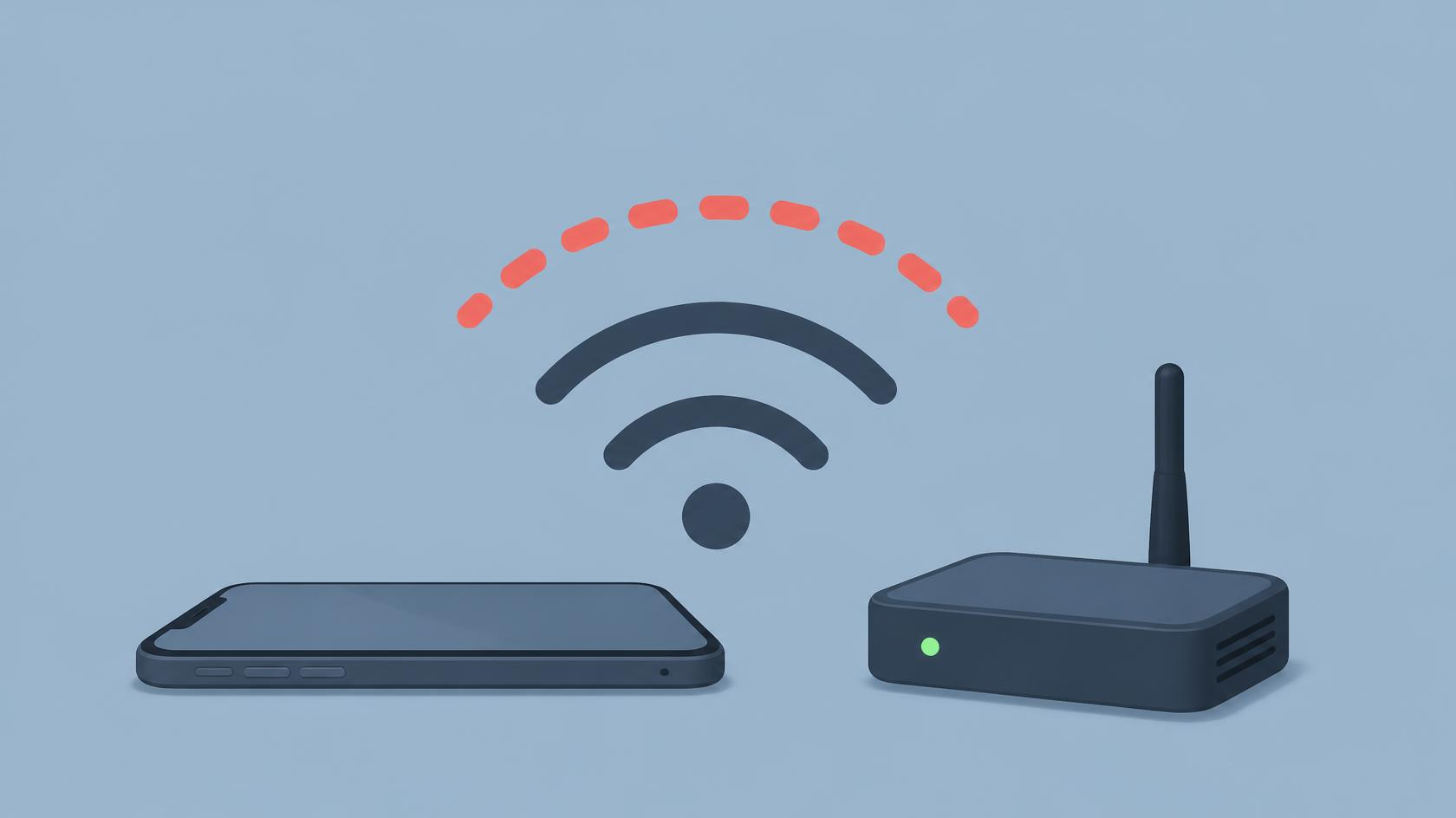
The laptop is streaming. Somebody else is on a video call. Your phone, connected to the same Wi-Fi, three metres from the router, says “Connected, no internet” and refuses to load anything.
This is one of the few Android messages that is both accurate and misleading at the same time. The phone really did fail a test. The test just isn’t the one you think it is.
What Android is actually testing
When your phone joins a Wi-Fi network, it does not check whether the internet works in general. It sends a small request to one specific Google address and waits for one specific reply — a tiny, empty response known as a captive portal check.
Three things can happen:
- The expected empty reply arrives. Android marks the network as working.
- A login page arrives instead. Android shows “Sign in to network” — a café or hotel portal.
- Nothing arrives, or something unexpected does. Android shows “No internet”, even if the rest of the connection is perfectly healthy.
That third case is the one that catches people out. A router that blocks or redirects that one check — common with some DNS filtering services, parental-control firmware and ISP-supplied boxes — produces a phone that says it has no internet while every other device is fine.
A quick test before anything else: open a browser on the phone and go to any plain HTTP address you know. If pages load while Android still claims there is no internet, you have a failed portal check and not a broken connection. Skip to fix 4.
Fix 1: Forget the network and rejoin it
Worth doing first because it costs nothing and clears a stale lease, a stuck IP address and a half-finished handshake in one go.
- Settings → Network & internet → Internet.
- Tap the gear beside your network name.
- Tap Forget.
- Select the network again and enter the password.
If the problem returns within minutes, the phone is being handed a bad address each time — which points at the router, and fix 5 covers it.
Fix 2: Check the clock
A phone whose clock is wrong by more than a few minutes cannot validate security certificates. Most secure pages then fail, and the connectivity check fails with them.
Settings → System → Date & time → turn on Set time automatically. If it is already on, turn it off, set the time by hand to something obviously correct, then turn it back on.
Fix 3: Turn off anything that rewrites your traffic
VPN apps, ad-blocking apps that run as a local VPN, and “private DNS” settings all sit between the phone and the network. Any of them can break the check while leaving ordinary browsing alive — or the other way round.
- Disconnect any VPN, and check Settings → Network & internet → VPN for one you forgot about.
- Open Settings → Network & internet → Private DNS and set it to Off temporarily.
- Reconnect to the Wi-Fi and see whether the warning clears.
If turning Private DNS off fixes it, the DNS provider you had set was unreachable on that network. Set it back to Automatic rather than off, and only name a specific provider if you know it works there.
Fix 4: Give the phone a DNS server that answers
This is the fix for the case where pages load but Android still complains, and for networks whose own DNS is slow or filtered.
- Settings → Network & internet → Internet → gear beside your network.
- Tap the pencil to edit, then open Advanced options.
- Change IP settings from DHCP to Static.
- Leave the IP address as it is offered, and set DNS 1 to
1.1.1.1and DNS 2 to8.8.8.8. - Save and reconnect.
One catch with static IP: the address you fix in place is only valid on that one network. Take the phone somewhere else and it will fail to connect until you set IP settings back to DHCP. If you move around a lot, use Private DNS instead — it achieves the same thing without pinning an address.
Fix 5: Rule the router in or out properly
Most guides say “restart the router” and leave it there. Do better than that — find out whether the router is even involved.
| Test | If it works | What that tells you |
|---|---|---|
| Mobile data, Wi-Fi off | Internet fine | The phone’s networking is healthy |
| A friend’s hotspot | Internet fine | Your router or its settings are the cause |
| Another phone on your Wi-Fi | Internet fine | Something specific to your phone’s profile for that network |
| Your phone on the 2.4 GHz band only | Internet fine | A 5 GHz band or channel problem, common with mesh systems |
Those four tests take three minutes and will tell you more than an hour of guessing. If the hotspot works and your Wi-Fi does not, restart the router — properly, unplugged for thirty seconds — and then look at its DNS and filtering settings. A phone that passes every test here but still runs down fast is a separate problem.
Fix 6: Reset network settings
When nothing above helps, this clears every saved Wi-Fi network, every Bluetooth pairing and all mobile-network preferences, and rebuilds them from scratch. It does not touch your apps, photos or messages.
Settings → System → Reset options → Reset Wi-Fi, mobile & Bluetooth.
Write down the Wi-Fi passwords you will need before you do it. You will be typing them again.
The case nobody mentions: too many devices
Cheap and ISP-supplied routers often hand out a small pool of addresses — sometimes as few as twenty, and the pool includes devices that left hours ago but whose leases have not expired. When the pool is full, a new device associates with the Wi-Fi, gets no address, and shows exactly this message.
The giveaway is that it happens in the evening, when everyone is home, and clears by itself overnight. Restarting the router empties the pool immediately; raising the DHCP range in the router settings fixes it for good.
Frequently asked questions
Why does only my phone say there is no internet?
Because Android is the one running that particular check. Laptops and TVs test differently, or not at all, so they stay quiet about a network condition your phone objects to.
Pages load but the warning stays. Is that a problem?
It is, even though browsing works. Android may refuse to use that network for background sync, so email, messages and app updates stall while the browser looks fine. Fix 4 usually clears it.
Should I use 1.1.1.1 or 8.8.8.8?
Either works. Setting one as primary and the other as secondary is sensible, because if one is unreachable on a given network the other answers.
Does airplane mode on and off do anything?
It forces every radio to drop and re-associate, which is a faster version of forgetting the network. It is worth ten seconds, but if it fixes things only until the next reconnection, the real cause is still there.
In short
“No internet” is not Android guessing. It is one failed request, and that request can fail for reasons that have nothing to do with whether your connection works. Check the clock, turn off anything rewriting your traffic, point the phone at a DNS server that answers, and only then start restarting hardware.