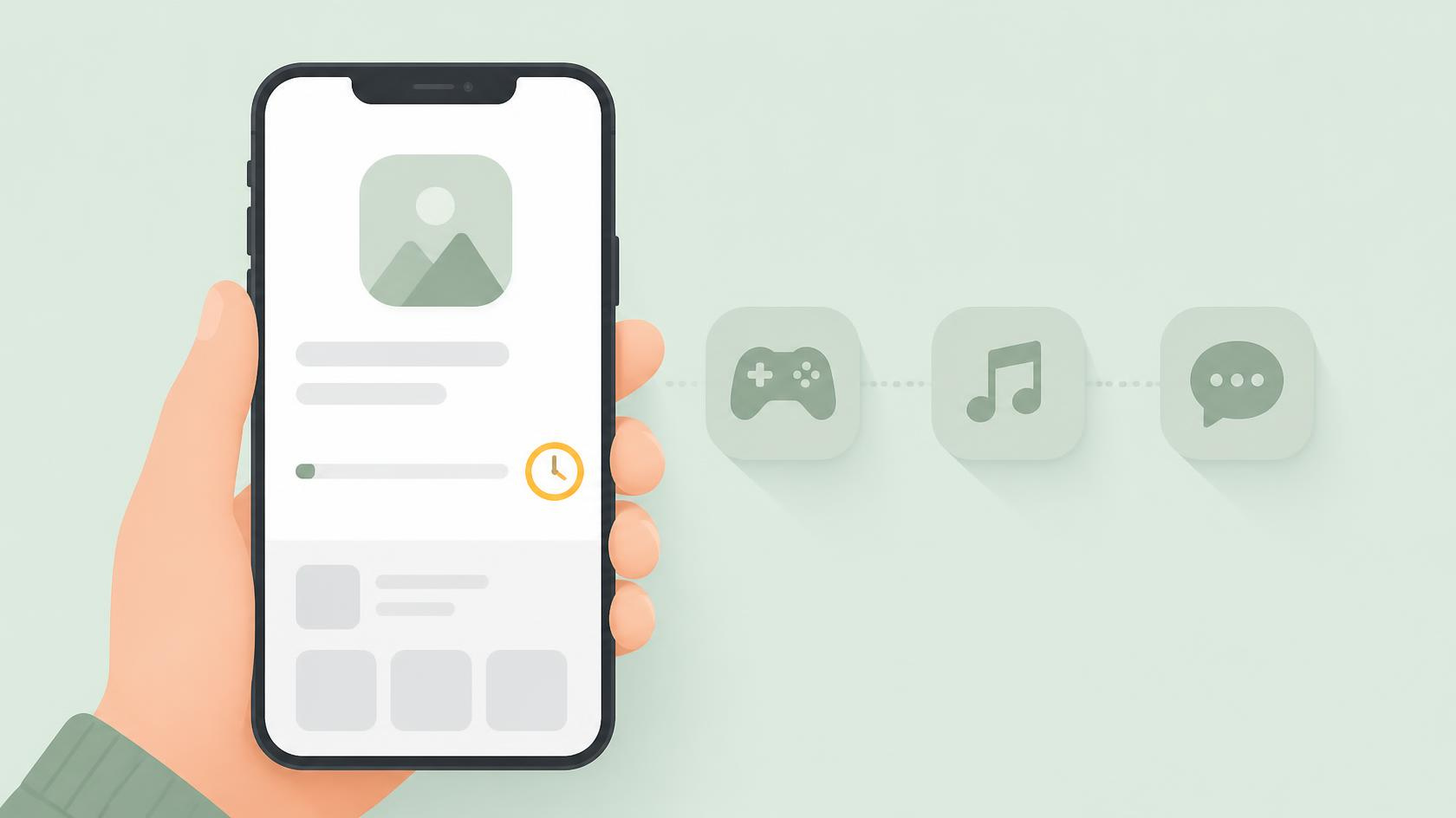
You tap Install, the button changes, and then nothing. Download pending. Five minutes later, still pending. The Wi-Fi is fine, the phone is fine, and every other app on the phone is behaving itself.
The frustrating part is that this is not an error. There is no error code, no “try again” button, nothing to look up. The Play Store is simply telling you that your download is in a line, and it is not telling you what the line is waiting for.
This guide explains what that queue actually is, and then walks through nine fixes in order — cheapest first, most disruptive last. Most people are back in business by fix number three.
What “Download pending” really means
The Play Store downloads one thing at a time. When you ask for a new app, it joins a queue behind everything already in that queue — and that queue is usually invisible to you, because automatic updates put things in it without asking.
So “Download pending” normally means one of five things:
- Something else is downloading or updating ahead of you, often silently.
- The Play Store is waiting for a network condition you set — Wi-Fi only, or charging only.
- There is not enough free storage for the app plus its unpacking space.
- The Play Store’s own cached download list has become corrupt and is pointing at a job that no longer exists.
- A pending system update has reserved the download channel.
Each fix below targets one of those five. That is why the order matters.
Fix 1: Empty the invisible queue
This is the one that works most often, and it takes about ten seconds.
- Open the Play Store.
- Tap your profile picture in the top right.
- Tap Manage apps & device, then the Manage tab.
- Look at the top of the list — anything mid-download or mid-update is shown there.
- Tap the X beside each one to cancel it.
Now go back to the app you wanted and tap Install again. With the queue empty, it usually starts immediately.
Worth knowing: cancelling an update does not harm the app. The installed version stays exactly as it is, and the update simply comes back later. Nothing is deleted. If it later refuses to install at all, that is a different problem with its own fixes.
Fix 2: Check the two settings that quietly block downloads
The Play Store has preferences that pause downloads without ever saying so. If one of them is on and the condition is not met, you get “Download pending” and no explanation at all.
- Play Store → profile picture → Settings.
- Open Network preferences → App download preference.
- If it is set to Over Wi-Fi only and you are on mobile data, that is your answer. Switch it to Over any network, or connect to Wi-Fi.
- Back in Settings, open General → Auto-update apps and check whether updates are restricted to charging or to Wi-Fi.
Also check Android’s own data saver, which the Play Store obeys: Settings → Network & internet → Data Saver. With it on, background downloads are throttled or stopped.
Fix 3: Clear the Play Store’s cache and data
If the queue is empty and the settings are right, the next suspect is the Play Store’s own record of what it is supposed to be doing. That record lives in its cache, and it does go bad.
- Settings → Apps → See all apps → Google Play Store.
- Tap Storage & cache.
- Tap Clear cache first. Try your download again.
- If it still hangs, come back and tap Clear storage (on some phones, Clear data).
- Reopen the Play Store. It will take a moment to rebuild and may ask you to accept the terms again.
Then do the same for Google Play Services, which is the component that actually performs the transfer. Clear its cache only — not its storage, which can sign you out of other Google apps.
Careful here: “Clear storage” on the Play Store is safe — it removes preferences and the download list, not your apps or your purchases. “Clear storage” on Google Play Services is a different matter and is best left alone unless a support page specifically tells you to.
Fix 4: Make real room, not just a little room
An app needs more free space than its listed size. The download arrives compressed, is unpacked, and both copies exist on the phone at the same time for a few seconds. A 300 MB app can need close to a gigabyte while it installs.
Android will not always say so. Sometimes it just waits, hoping space appears.
| App download size | Free space worth having |
|---|---|
| Under 100 MB | At least 500 MB |
| 100 – 500 MB | At least 1.5 GB |
| Over 1 GB (large games) | At least 3× the app size |
Go to Settings → Storage and look at the real number. If you are under those figures, clear some space and try again before touching anything else.
Fix 5: Deal with the pending system update
A downloaded-but-not-installed Android update can hold the download channel. Check Settings → System → System update. If an update is sitting there waiting to be installed, install it and restart — then try the app again.
Fix 6: Remove and re-add your Google account
If the Play Store’s authentication token has gone stale, downloads queue and never start. Re-adding the account issues a fresh one.
- Make sure you know the password, and that two-factor authentication is reachable.
- Settings → Passwords & accounts (on some phones, Accounts).
- Tap your Google account → Remove account.
- Restart the phone.
- Add the account back, then open the Play Store.
Your apps, purchases and app data are tied to the account, not to the phone, so nothing is lost by doing this. Apps using that account for sign-in will simply ask you to sign in again.
Fix 7: Set the date and time to automatic
This one sounds unrelated and fixes a surprising number of cases. Google’s servers reject requests whose clock is badly out of step, because the security certificates stop validating. The Play Store does not report that as a clock problem — it just waits.
Go to Settings → System → Date & time and turn on Set time automatically and Set time zone automatically.
Fix 8: Switch networks once
Some public, office and campus networks block or throttle the ports the Play Store uses. The symptom is exactly this: a download that queues forever while web pages load normally.
Turn Wi-Fi off, use mobile data for one minute, and see whether the download starts. If it does, the network was the problem — not your phone. The same test rules a VPN in or out: turn it off and retry.
Fix 9: Uninstall Play Store updates
The last resort, and still harmless. The Play Store is a system app, so you cannot remove it — but you can roll it back to the version that shipped with the phone and let it update itself again.
- Settings → Apps → Google Play Store.
- Tap the three dots in the top right.
- Choose Uninstall updates.
- Restart the phone and open the Play Store. It will update itself in the background within a few minutes.
The order worth following
If you would rather not read all nine, this is the short version:
- Cancel everything in Manage apps & device.
- Check App download preference and Data Saver.
- Clear the Play Store cache, then its storage.
- Free up real space — a gigabyte, not a hundred megabytes.
- Only then start removing accounts or rolling back updates.
Frequently asked questions
How long should “Download pending” last before I worry?
On a normal connection, a few seconds. If it has not moved in two minutes, something is holding it and waiting longer will not help.
Will clearing Play Store data delete my installed apps?
No. It clears the store’s own settings, search history and download list. Your apps, their data and your past purchases are untouched.
Why does it happen more often after I set up a new phone?
Because a new phone restores dozens of apps at once. Everything you install by hand goes to the back of that queue, and the queue can take hours. Cancelling the restore items lets your own download through.
Does a factory reset fix it?
It usually does, and it is almost never necessary. Every cause listed above has a targeted fix. Keep a reset for a phone that is misbehaving in several unrelated ways at once.
If none of it works
Try installing a different, small app. If that one downloads fine, the problem is not the Play Store at all — it is that one app, which may have been pulled from your country, made incompatible with your Android version, or restricted to newer hardware. The store rarely says so plainly; it just never starts.
And if every download hangs even on mobile data, with an empty queue and plenty of space, the most likely remaining cause is a corrupt Google Play Services install — at which point rolling that back, the same way as fix nine, is the next step.