
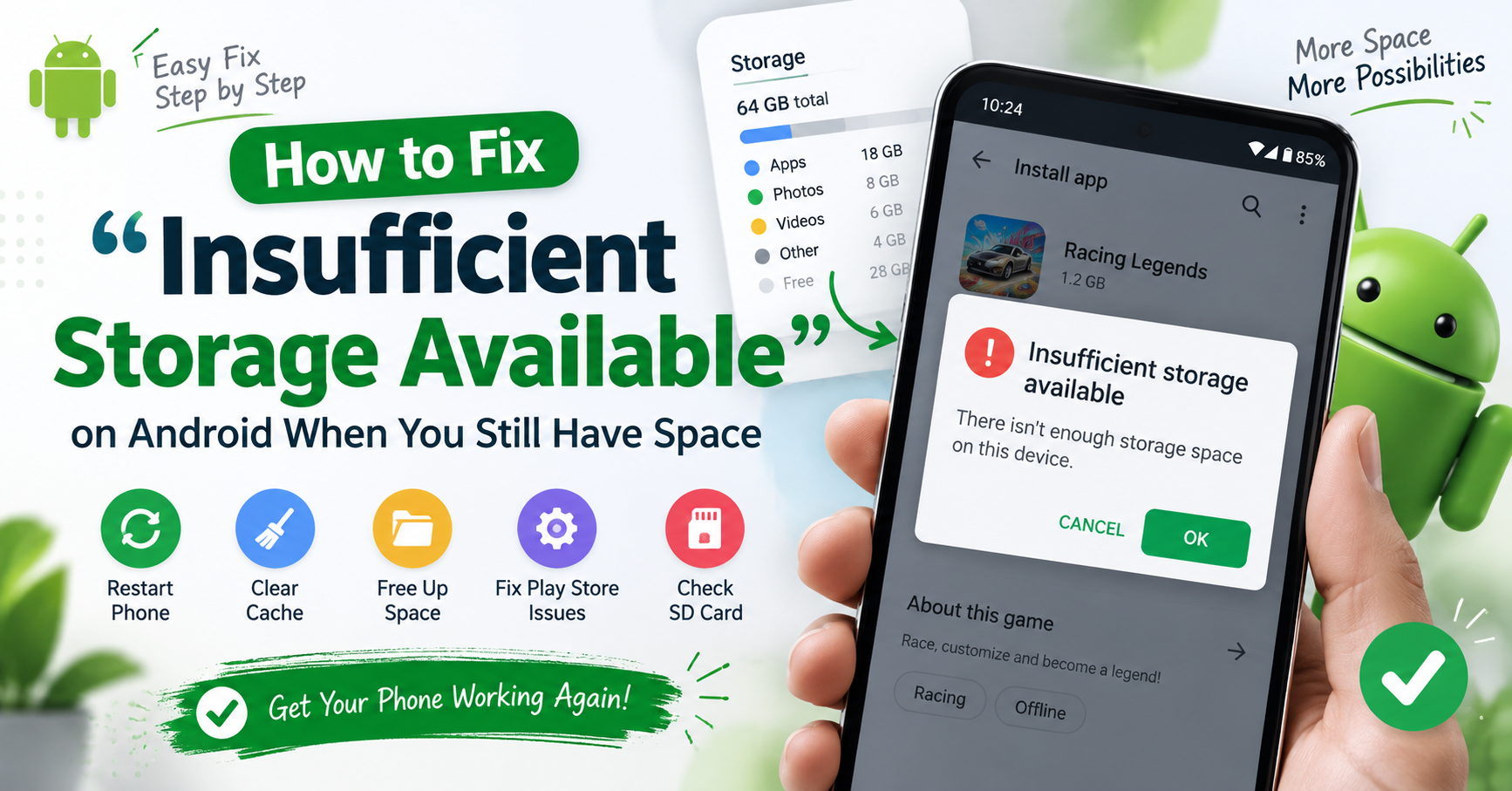
You go to install an app, the phone says “Insufficient storage available”, and then you check and there are four gigabytes free. The message looks like a bug. It usually is not.
Android is not counting the space the app will take. It is counting the space it needs while installing — and that is a different, much larger number. Below is the order to work through, cheapest step first. Most people are fixed by step three.
First: restart the phone
Not the app. The phone.
Android keeps temporary files from downloads and updates that failed halfway. Some of them are only cleaned up on boot. This takes forty seconds and solves a real share of these, which is a better return than anything else on this page.
Why the number you see is not the number that matters
Installing an app needs room for three things at once: the downloaded package, the unpacked app, and the temporary files created while unpacking. As a rule of thumb, keep two to three times the app’s size free, not just its size.
So a 900MB game genuinely may not install with 1.5GB free. The phone is right and the message is badly worded.
Large games make this worse. They download a small app and then pull down an “OBB” data file afterwards, which gets unpacked again. A 2GB game can want 6GB during installation and settle back to 2.5GB when it is done.
Clear the Play Store’s own cache
The Play Store keeps its own working files, and when those get into a bad state it reports storage problems that have nothing to do with your storage.
- Settings → Apps → see all apps → Google Play Store
- Storage & cache → Clear cache
- Go back, open Google Play Services → Storage & cache → Clear cache
- Restart the phone and try the install again
Clear cache, not Clear storage. On Google Play Services those two buttons sit side by side and they are not alike. Clearing the cache throws away temporary files and costs you nothing. Clearing storage resets the service — you can be signed out of Google apps, Find My Device can stop reporting, and some apps will ask you to sign in again. There is no reason to do it at this stage.
Find where the space actually went
Go to Settings → Storage. Nearly every phone shows a breakdown by type. What catches people out, in order of how often:
- WhatsApp media. Every image and video anyone sent you in any group, saved on the phone. On a phone used in family and work groups this is routinely 5–15GB. Open WhatsApp → Settings → Storage and data → Manage storage. It sorts by size and shows “Larger than 5 MB” — that list alone usually frees several gigabytes.
- The Downloads folder. Years of PDFs, APKs and things opened once.
- Telegram’s cache. Telegram caches everything you scroll past. Settings → Data and Storage → Storage Usage → set “Keep media” to a few days.
- Your own videos. A minute of 4K video is around 350MB.
Clear cached data app by app
Cached data is files an app can rebuild. Deleting it is safe — you lose nothing but a little speed the first time the app opens.
Settings → Apps → pick an app → Storage & cache → Clear cache. Do the browsers, the social apps and the video apps first; they are the ones that hold gigabytes.
Note that Android removed the old “clear all caches at once” button years ago, so this is one app at a time. Sorting the app list by size makes it quick — the top five apps are almost always where the space is.
If it is a large game
Move something else off the phone before you start, so there is 3× the game’s size free, then install. Once it is installed the space comes back. Trying repeatedly with not quite enough room just leaves more half-downloaded files behind, which makes the next attempt worse.
Uninstall Play Store updates
If everything above has failed, the Play Store app itself may be in a broken state.
Settings → Apps → Google Play Store → three dots (top right) → Uninstall updates. The Play Store drops back to the version the phone shipped with, updates itself again within a few minutes, and often installs correctly after that.
This is safe. It removes nothing of yours.
The SD card trap
If your phone has an SD card and it is nearly full, some phones report insufficient storage even when internal storage is fine — because the card is set as the default install location.
Settings → Storage → tap the SD card → check what is on it, or set installs back to internal storage in the Play Store’s settings. Also worth knowing: a card that is failing shows up as strange storage errors long before it stops working entirely.
If none of this worked
A handful of phones — usually older budget models with 16GB or 32GB of internal storage — reach a point where the system partition is simply full, and no amount of clearing user files helps. On those, the honest answer is that the phone is out of room, and only removing apps or a factory reset will change it.
If you do reach that point, back up first and treat the reset as a last resort rather than a first troubleshooting step. It is a long afternoon and it is not usually necessary.
The short version
- Restart the phone.
- Free 2–3× the app’s size, not 1×.
- Clear the cache (not the storage) of Play Store and Play Services, then restart.
- Clear WhatsApp media, the Downloads folder and Telegram’s cache.
- Uninstall Play Store updates.